LDAP Data Interchange Format (LDIF) files are used to export database entries from the Directory Server databases. LDIF is a standard format described in RFC 2849, The LDAP Data Interchange Format (LDIF) - Technical Specification.
Exporting data can be useful for the following:
-
Backing up the data in the database.
-
Copying data to another Directory Server.
-
Exporting data to another application.
-
Repopulating databases after a change to the directory topology.
For example, if a directory contains one database, and its contents are split into two databases, then the two new databases receive their data by exporting the contents of the old databases and importing it into the two new databases, as illustrated in Figure 4.1, “Splitting a Database Contents into Two Databases”.
NOTE
The export operations do not export the configuration information (cn=config), schema information (cn=schema), or monitoring information (cn=monitor).
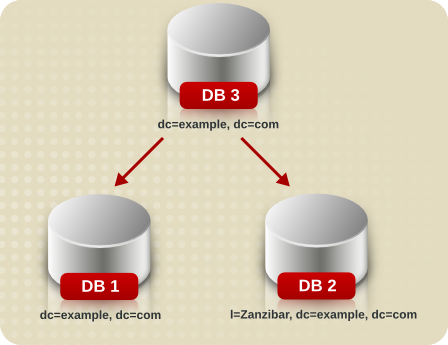
The Directory Server Console or command-line utilities can be used to export data.
CAUTION
Do not stop the server during an export operation.
Some or all of directory data can be exported to LDIF, depending upon the location of the final exported file. When the LDIF file is on the server, only the data contained by the databases local to the server can be exported. If the LDIF file is remote to the server, all of the databases and database links can be exported.
Export directory data to LDIF from the Directory Server Console while the server is running, and do the following:
-
Select the Tasks tab. Scroll to the bottom of the screen, and click Export Database(s).
Alternatively, select the Configuration tab and click the Export from the Console menu.
The Export Database dialog box opens.
-
Enter the full path and filename of the LDIF file in the LDIF File field, or click Browse to locate the file.
Browse is not enabled if the Console is running on a remote server. When the Browse button is not enabled, the file is stored in the default directory,
/var/lib/dirsrv/slapd-. [3]instance_name/ldif -
If the Console is running on a machine remote to the server, two radio buttons are displayed beneath the LDIF File field.
-
Select To local machine to export the data to an LDIF file on the machine from which the Console is running.
-
Select To server machine to export to an LDIF file located on the server's machine.
-
-
To export the whole directory, select the Entire database radio button.
To export only a single subtree of the suffix contained by the database, select the Subtree radio button, and then enter the name of the suffix in the Subtree text box. This option exports a subtree that is contained by more than one database.
Alternatively, click Browse to select a suffix or subtree.
-
Click OK to export the file.
It is also possible to export a single database to LDIF. Do the following while the server is running:
-
Select the Configuration tab.
-
Expand the Data tree in the left navigation pane. Expand the suffix, and select the database under the suffix.
-
Right-click the database, and select Export Database.
Alterntaively, select Export Database from the Object menu.
The Export Partition dialog box opens.
-
In the LDIF file field, enter the full path to the LDIF file, or click Browse.
When the Browse button is not enabled, the file is stored in the default directory,
/var/lib/dirsrv/slapd-. [3]instance_name/ldif -
Click OK to export the file.
Databases can be exported to LDIF using the db2ldif command-line script. This script exports all of the database contents or a part of their contents to LDIF when the server is running or stopped.
NOTE
To export a database that has been encrypted, you must use the -E option with the script. See Section 3.2.3.5, “Exporting and Importing an Encrypted Database” for more information.
To export to LDIF from the command-line, do the following:
-
Open the Directory Server instance directory:
cd /usr/lib/dirsrv/slapd-
instance_name -
Run the
db2ldifcommand-line script.db2ldif -n database1 -a /export/output.ldif
This exports the database contents to
/export/output.ldif. If the-aoption is not specified, then the database information is exported to/var/lib/dirsrv/slapd-instance_nameinstance_name/ldif/-database1-date.ldif. For example:db2ldif -n database1
It is also possible to specify which suffixes to export, using the
-soption. For example:db2ldif -s "dc=example,dc=com"
The LDIF file in this case would be
/var/lib/dirsrv/slapd-instance_nameinstance_name/ldif/-example-2007_04_30_112718.ldif, using the name of the suffix rather than the database.If the suffix specified is a root suffix, such as
dc=example,dc=com, then it is not necessary to specify the database or to use the-noption.For more information about using this script, see the Directory Server Configuration, Command, and File Reference.
| Option | Description |
|---|---|
| -n | Specifies the name of the database from which the file is being exported. |
| -s |
Specifies the suffix or suffixes to include in the export. If the suffix is a root suffix, such as dc=example,dc=com, then the -n option is not required. There can be multiple -s arguments.
|
| -a |
Defines the output file to which Directory Server exports the LDIF. This file must be an absolute path. If the -a option is not given, the output ldif is stored in the the /var/lib/dirsrv/slapd- directory and is automatically named serverID-database-YYYY_MM_DD_hhmmxx.ldif with the -n option or serverID-firstsuffixvalue-YYYY_MM_DD_hhmmxx.ldif with the -s option.
|