There is a simple script to launch the Directory Server Console. On Red Hat Enterprise Linux and Solaris, run the following:
/usr/bin/redhat-idm-console
HP-UX has a different location for the script:
/opt/dirsrv/bin/redhat-idm-console
NOTE
Make sure that the correct JRE — the program called java — is set in the PATH before launching the Console. Run the following to see if the Java program is in the PATH and to get the version and vendor information:
java -version
When the login screen opens, you are prompted for the username, password, and Administration Server location. It is possible to send the Administration Server URL and port with the start script. For example:
/usr/bin/redhat-idm-console -a http://localhost:9830
The a option is a convenience, particularly if you are logging into a Directory Server for the first time. On subsequent logins, the URL is saved. If you do not pass the Administration Server port number with the redhat-idm-console command, then you are prompted for it at the Console login screen.
After starting the Directory Server Console, a login screen opens, requiring the username and password for the user logging in and the URL for the Administration Server instance being access. The user logged in at the Console is the user who is binding to Directory Server. This determines the access permissions granted and allowed operations while access the directory tree. The user account used to log into the Directory Server Console can make significant differences in the access; for example, the Directory Manager has access to every user and configuration entry in Directory Server, while the admin entry created during installation has access to only configuration entries, not user entries. Regular user accounts are more limited.
To bind to, or log into, the Directory Server, supply a username and password at the login box.

At any time during a session, you can log in as a different user, without having to restart the Console. To change the login identity, do the following:
-
In the Directory Server Console, select the Tasks tab.
-
Click Log on to the Directory Server as a New User.

-
A login dialog box appears.
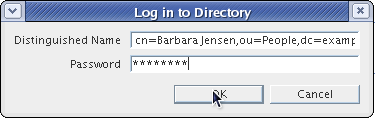
Enter the full distinguished name of the entry with which to bind to the server. For example, to bind as user Barbara Jensen, enter her full DN in the login box:
cn=Barbara Jensen, ou=People,dc=example,dc=com
